

Diretta on Rockna
Diretta is a high-performance LAN audio transport that delivers your music to a DAC or renderer over a standard network — with the precision of a directly attached connection. Here is what it is, and how to set it up on the Wavelight Server and Wavedream Reference.
What is Diretta?
Diretta is an end-to-end network audio protocol that splits playback into two roles: a Host that sends the audio stream, and a Target that receives it and feeds the DAC.
Rather than relying on large buffers and complex flow control, the Host transmits packets at constant, very short intervals. This keeps the Target's processing load steady and predictable, so power-supply fluctuations and electrical noise on the playback device are averaged out and minimized — the foundation of Diretta's clean, low-jitter sound.
Because it works end to end over the network (using IPv6 link-local), Diretta can run across your existing LAN between two devices, giving you flexible placement without sacrificing quality. It is however recommended to keep the shortest route between target and host.
Diretta DDS
Rockna's Reference DACs support Diretta DDS, an evolution of the Diretta protocol used by the Diretta Target. Whether a host can use DDS depends on its operating system.
The Diretta Target in the Reference DACs supports Diretta DDS.
DDS is supported natively — nothing extra to install.
DDS requires the Npcap driver. Install it from npcap.com for DDS to work.
Roles in Rockna products
Every Diretta link needs one Host and one Target. Here is how the two roles map to your Rockna components.
Wavelight Server
Host or TargetThe WLS is flexible: it can act as the Host, streaming your library out to a Diretta target, or as a Target, receiving a stream from another Diretta host and feeding its own outputs.
Wavedream Reference
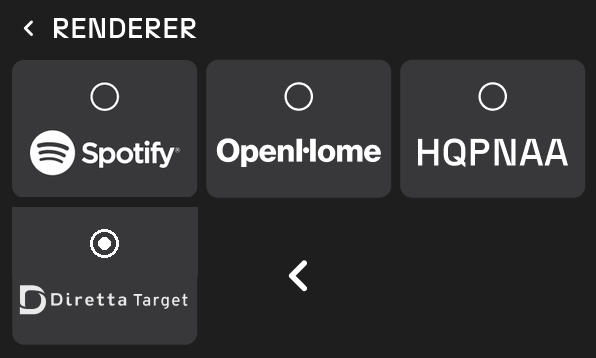
TargetThe Wavedream Reference is a Diretta Target. It receives the stream and renders it directly — the only setup step is selecting Diretta Target as the renderer from its menu.
Use cases
Diretta supports several configurations across the Rockna lineup. The most common setups are below.
The Wavelight Server streams your library to the Wavedream Reference, which renders it directly to your system — the flagship Rockna pairing and the configuration most owners will use.
One Wavelight Server feeds a second Wavelight Server acting as the target — ideal for separating the storage/source from the output stage.
With Roon running on the WLS, the Diretta target appears as a Roon zone and is enabled directly from Roon's audio settings.
The Wavelight Server can serve as a Diretta target for an external host, fitting into an existing Diretta-based setup.
Any Windows PC with the Rockna Diretta ASIO driver becomes a Diretta host, streaming from any ASIO-capable player to your target.
An external Diretta host can stream directly to the Wavedream Reference as its target.
The Wavelight Server can act as host for a third-party Diretta target, fitting into a mixed-brand setup.
Setting it up
Setup has three parts: prepare the Target, enable the Host, then select the target for playback. Follow the path that matches your setup.
Prepare the Target
Wavedream Reference: open the menu and select Diretta Target as the renderer. That is the only action required on the unit.
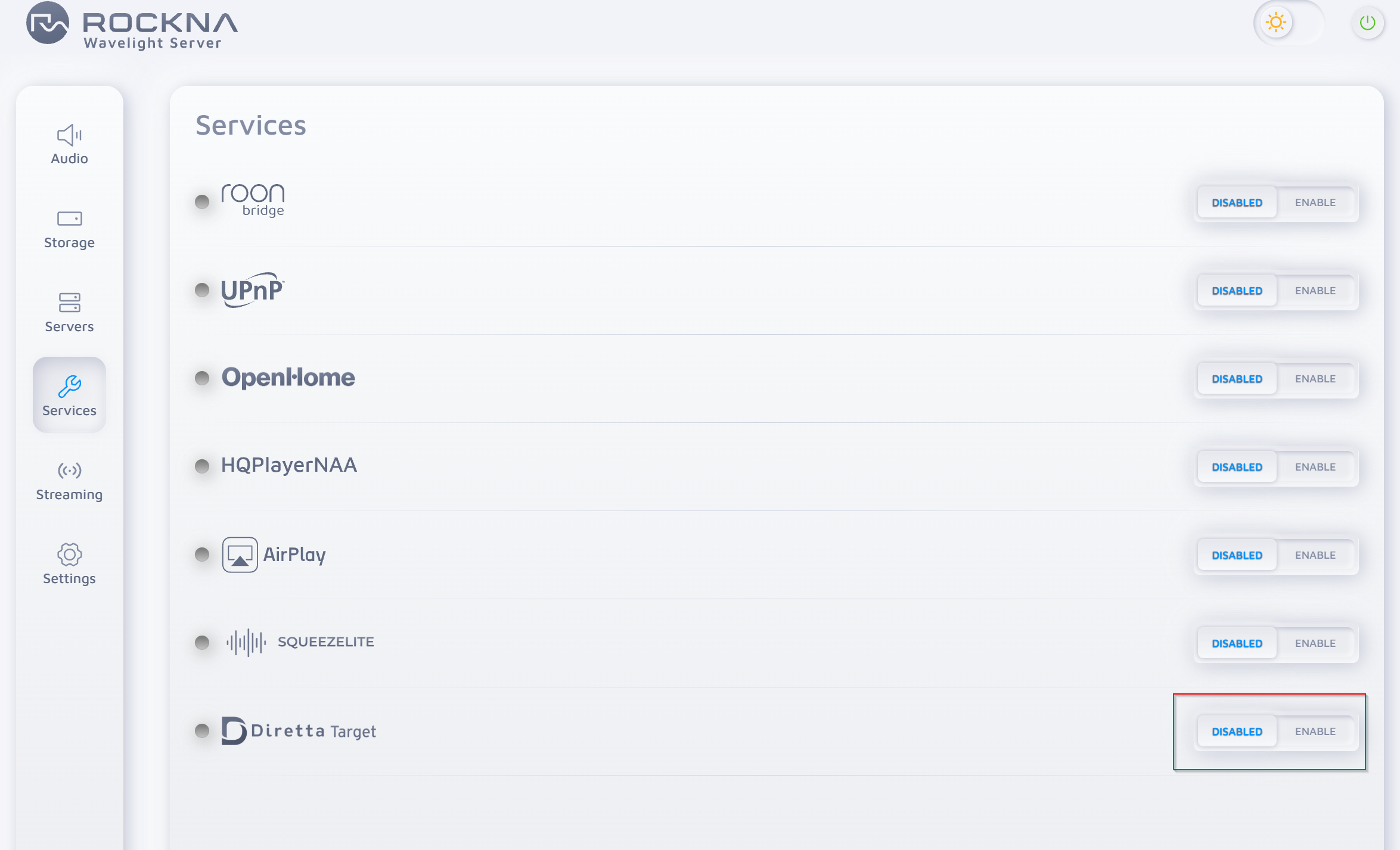
Wavelight Server as target: go to Services and enable Diretta Target.
Enable the Diretta Host on the source WLS
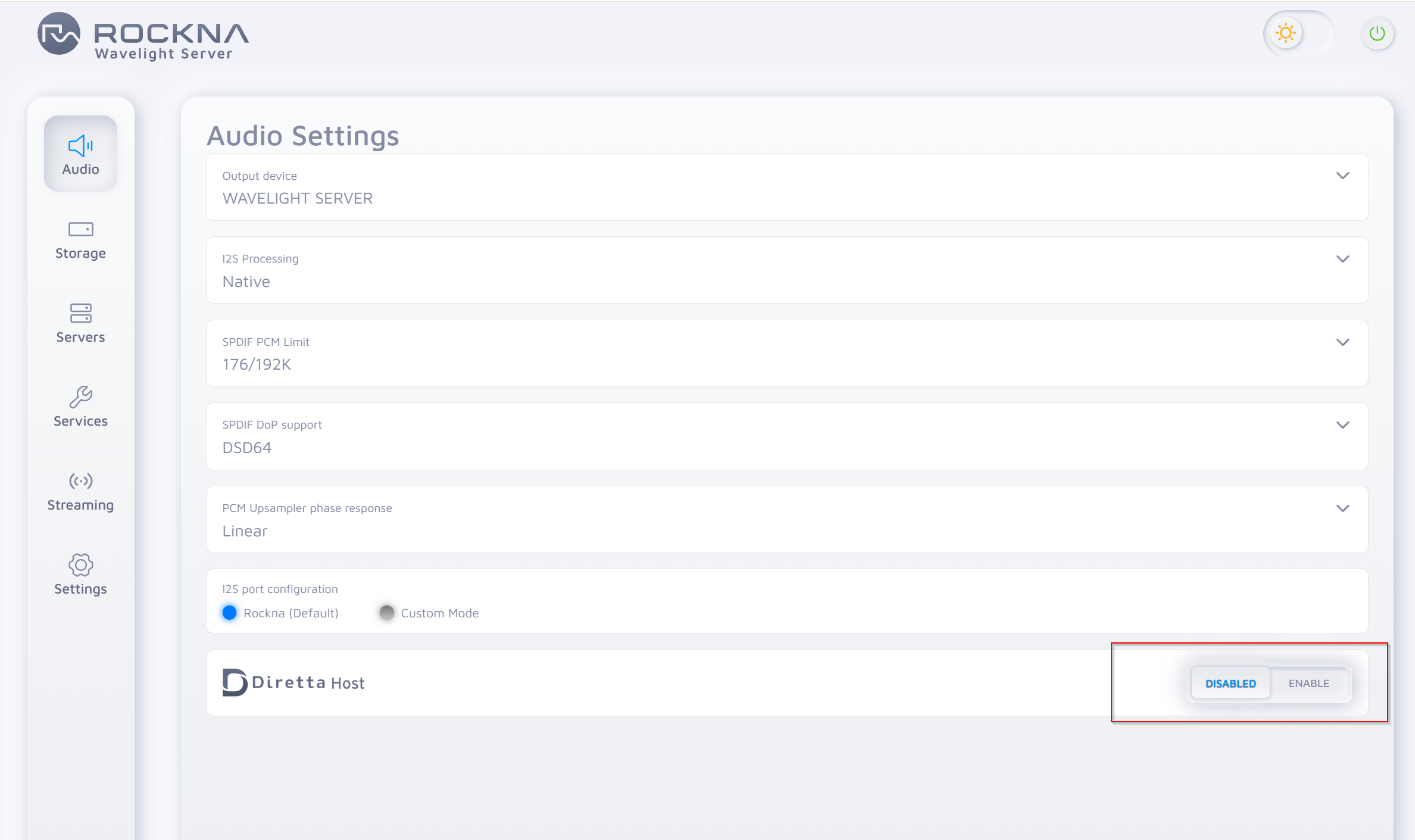
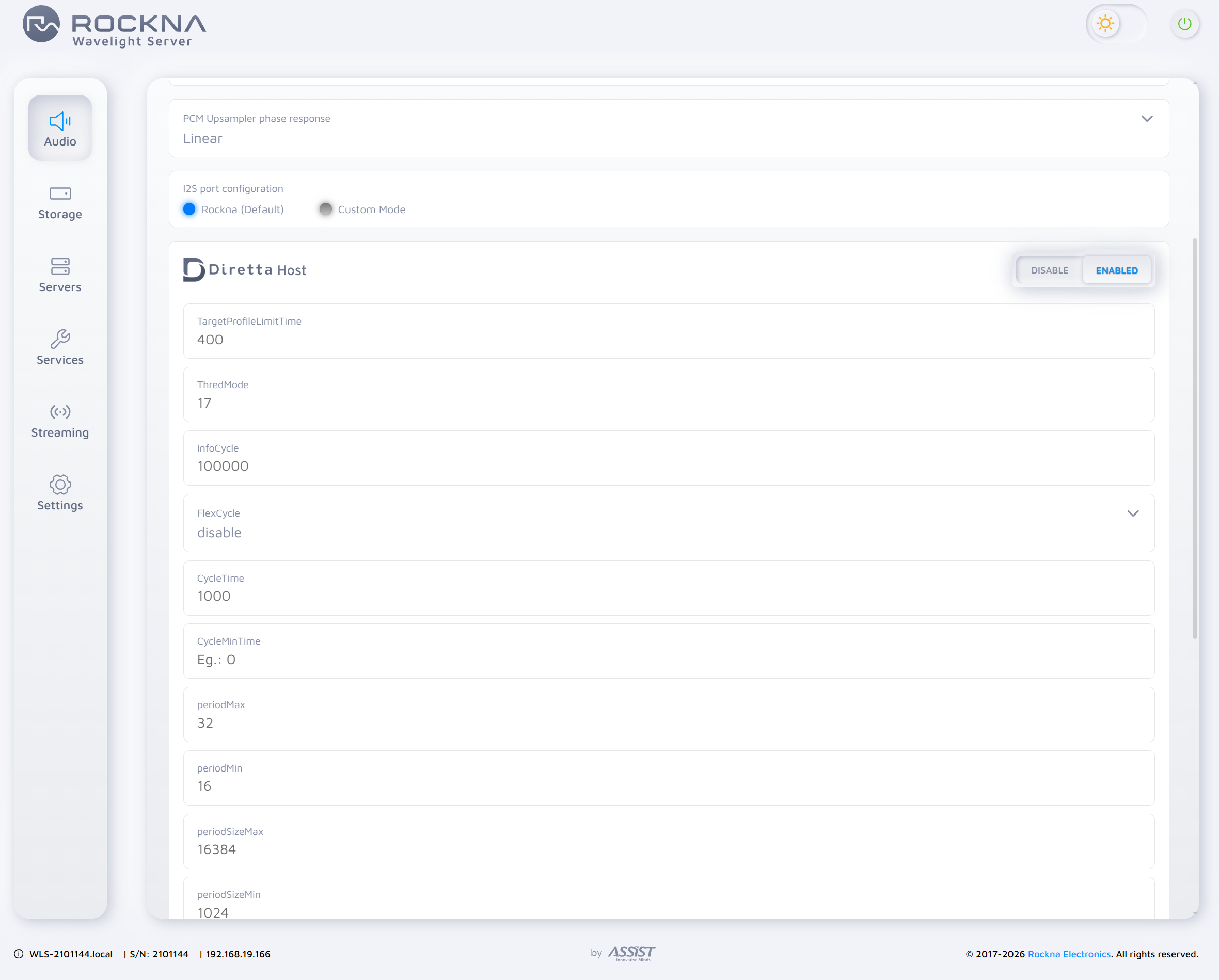
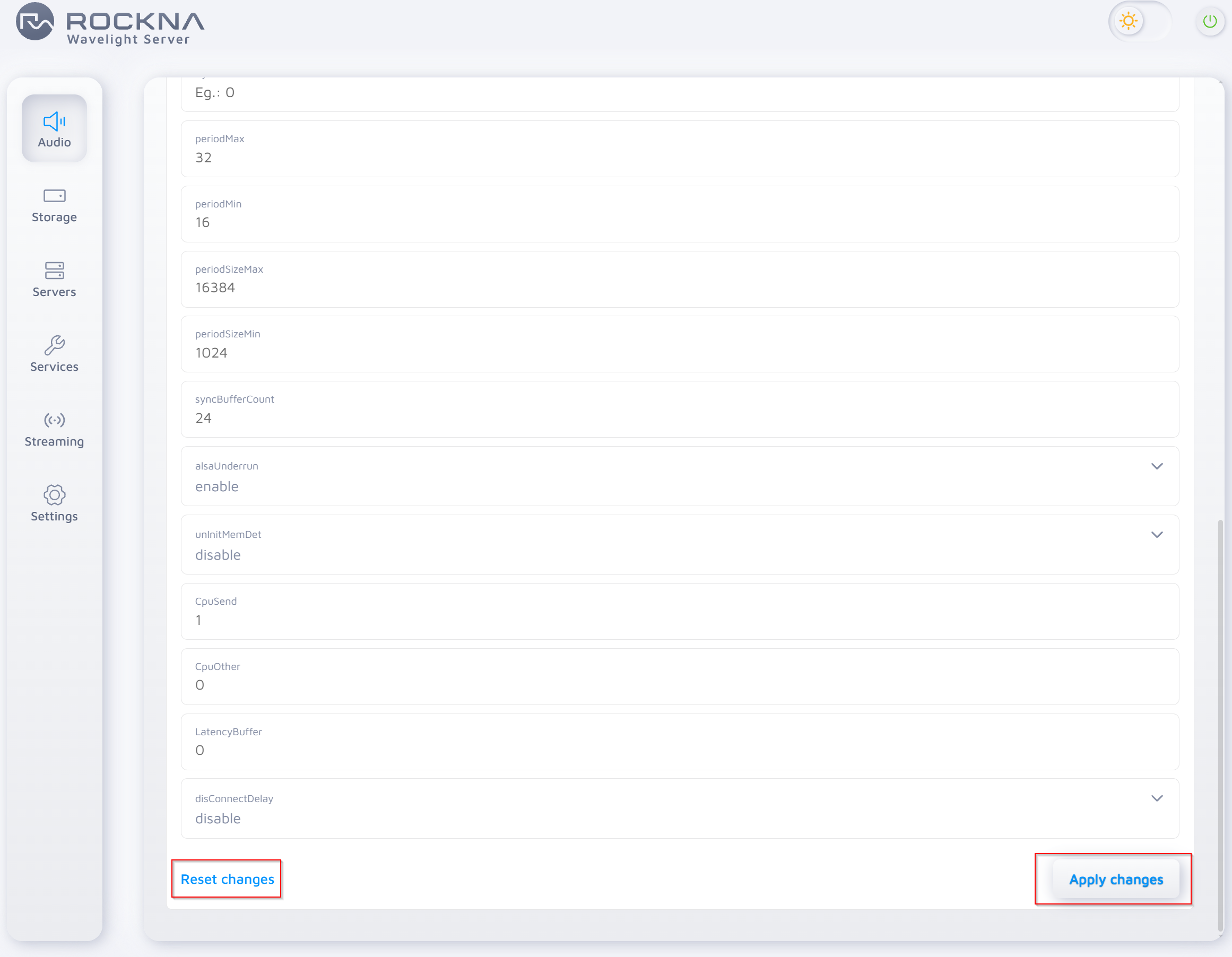
On the Wavelight Server that will send the audio, open Audio settings and scroll to the Diretta Host section. Switch it to Enabled, then scroll down and press Apply changes. The default parameters work for most systems.
Select the target for playback
How you choose the target depends on whether you play through Roon or through the WLS itself.
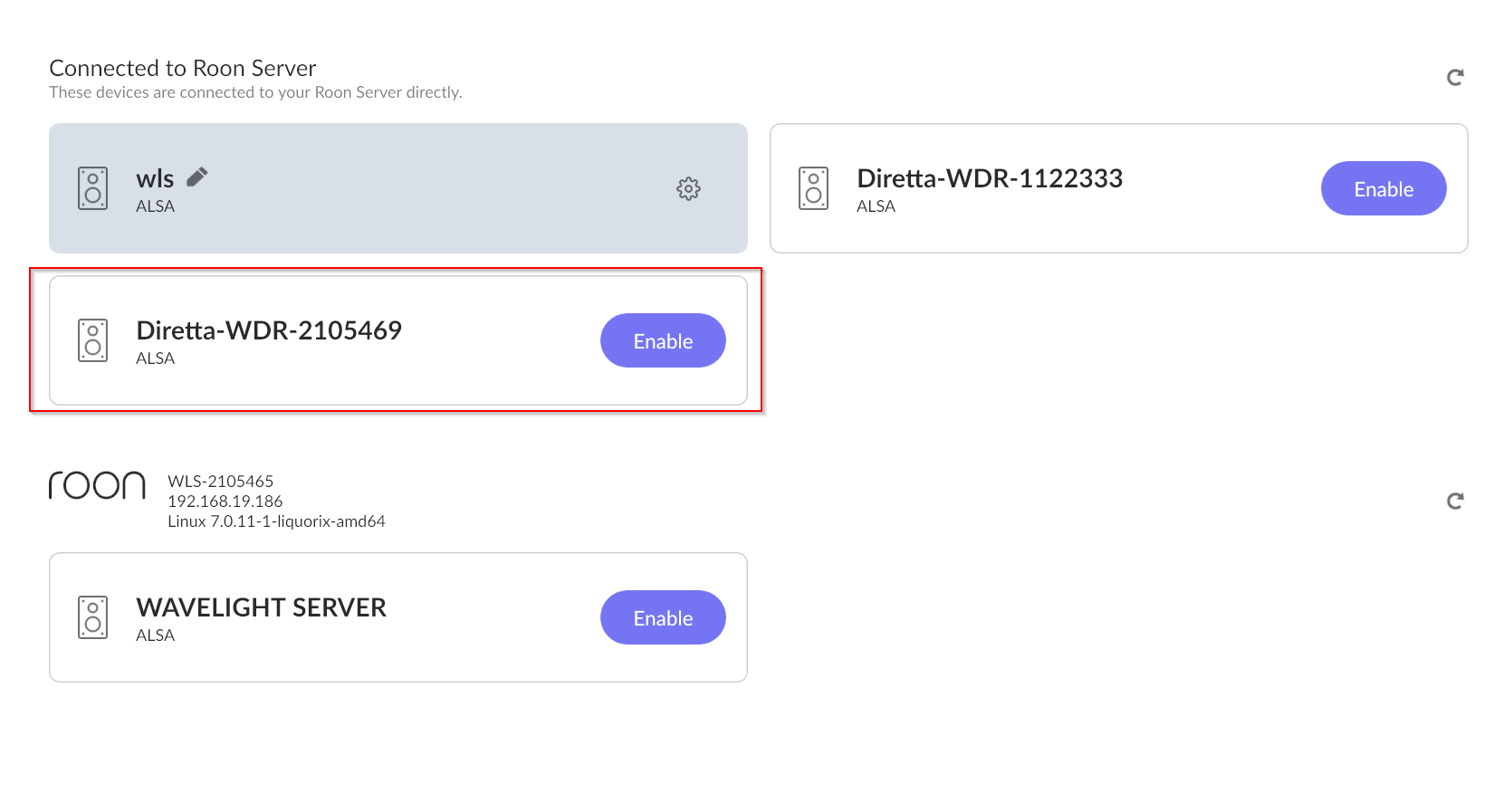
Using Roon — with Roon Core on the WLS, the Diretta target can be selected directly in Roon. Open Roon's audio settings, find the Diretta device under your Roon Server, and press Enable.
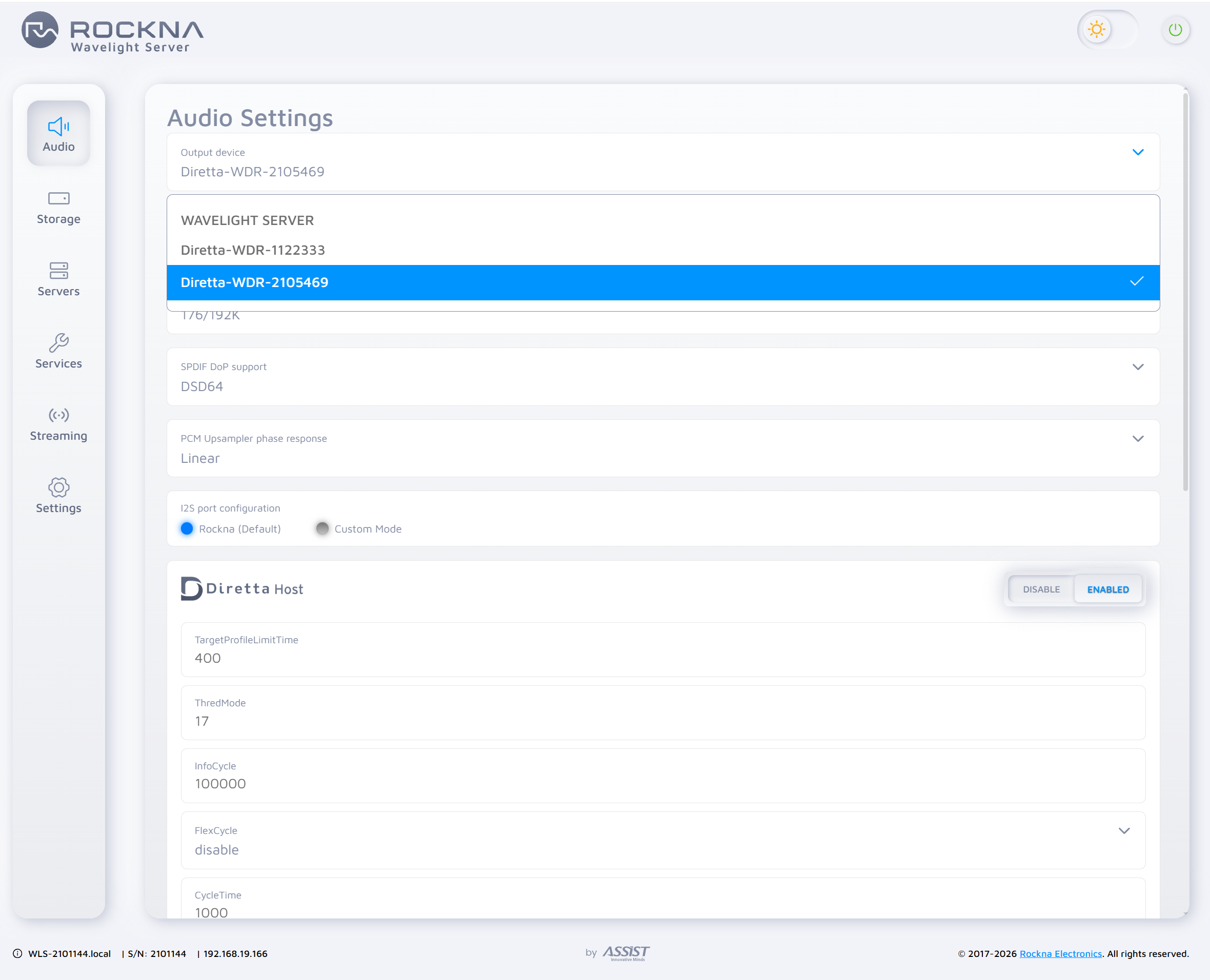
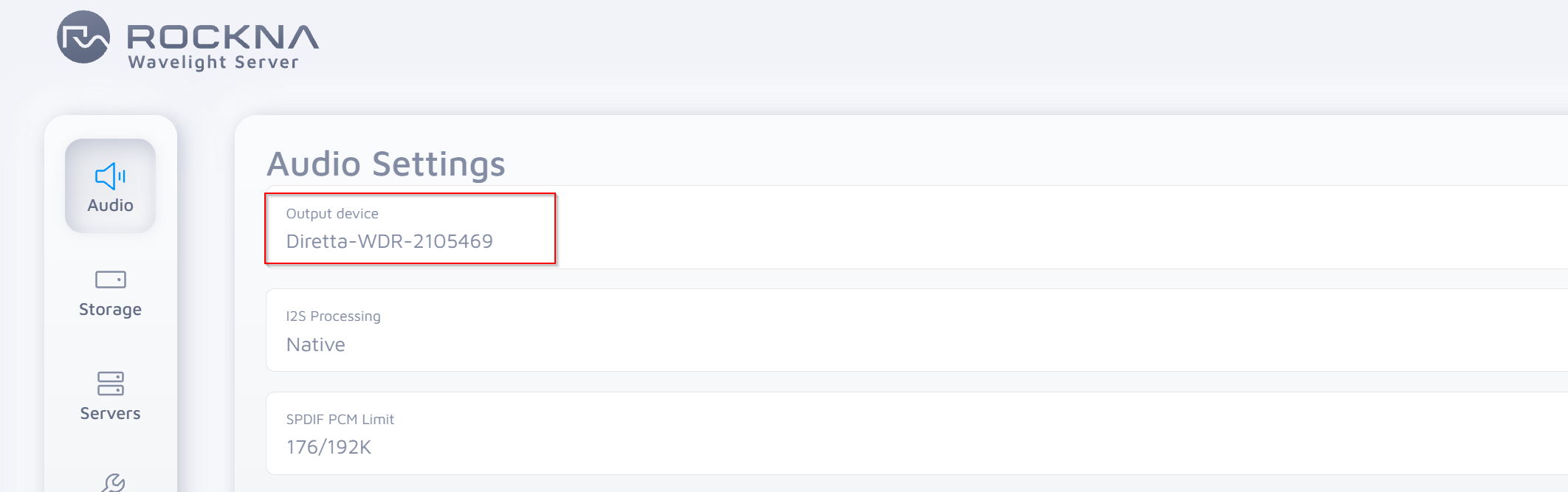
Using the WLS player / UPnP — on the source WLS, open Audio settings and set the Output device to the Diretta target (e.g. Diretta-WDR-…) from the dropdown.
Using a PC as the Host (ASIO driver)
You don't need a Wavelight Server to act as the host. Any Windows PC can become a Diretta host with the Rockna Diretta ASIO driver, streaming from any ASIO-capable playback software to your target.
Install the driver
Download and install the Rockna Diretta ASIO driver on your PC:
Download the Rockna Diretta ASIO driver →
For Diretta DDS on a Windows host, also install the Npcap driver from npcap.com. Linux hosts such as the Wavelight Server support DDS natively and need no extra driver.
Select it as the ASIO output
In your playback software (Roon, JRiver, foobar2000, HQPlayer, etc.), open the audio/output settings and choose Rockna Diretta as the ASIO device. Any application with ASIO support can use it.
Choose your target in the driver control panel
Open the Diretta ASIO configure control panel. Set Connect Target to your Diretta target (e.g. Diretta-WDR-… (WAVEDREAM REFERENCE)), then press update and save. The remaining fields — interface, PCM/DSD format, buffer and cycle — can stay at their defaults for most systems.
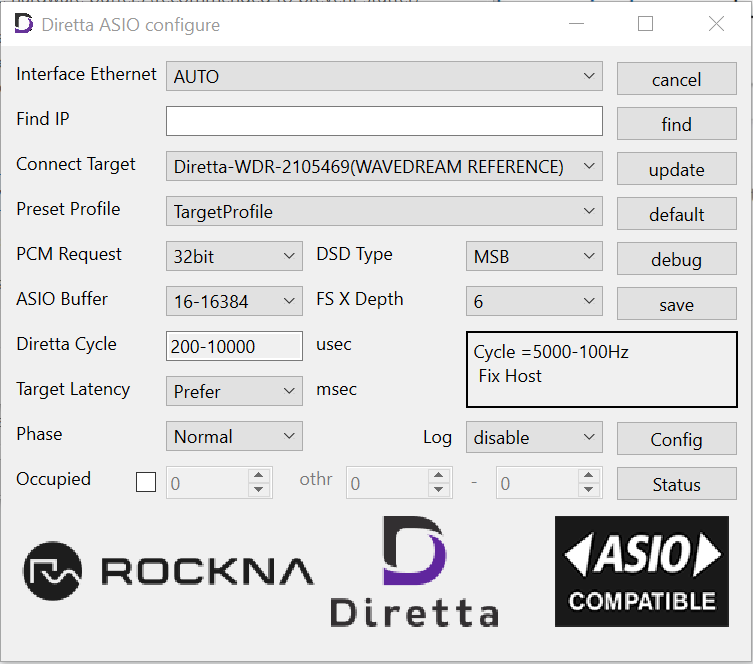
Important: the Target needs an internet connection
A Diretta Target performs a time synchronization on startup and will not start without internet access. Make sure the target device is connected to the network with a working internet connection before playback.
Understanding the settings
There is no single set of settings that works for every system. The defaults are a sensible starting point and are fine in most setups, but Diretta is sensitive to your network, player software and DAC — so in some cases the standard values need to be adjusted to get stable, reliable playback. The reference below explains what each setting does so you can make those adjustments with confidence. Whether you change the Diretta Host parameters on the Wavelight Server or the fields in the ASIO control panel, the meanings are the same.
Advanced settings reference ›
Wavelight Server — Diretta Host (Linux)
Fields in the WLS Audio → Diretta Host panel. The values shown are the Wavelight Server's standard configuration.
| Setting | What it does | WLS default | Sound impact |
|---|---|---|---|
| Interface | Network port Diretta uses to reach the target. Blank lets the server choose automatically; set it only with multiple adapters or a dedicated Diretta LAN. | Auto | Low |
| TargetProfileLimitTime | Lower bound of the transmission-cycle range when using TargetProfile. Read together with CycleTime as the Diretta cycle range. | 400 | Medium |
| CycleTime | Reference transmission cycle to the target, in microseconds. Shorter sharpens detail and response but raises CPU and network load. | 1000 | High |
| FlexCycle | How the cycle is handled — enable is flexible, disable is a fixed cycle. | disable | High |
| ThredMode | Thread priority and CPU behaviour (bit flags). 17 = high priority plus CPU pinning enabled. | 17 | High |
| CpuSend / CpuOther | Pins the send thread / the other threads to specific CPU cores (active because ThredMode enables pinning). | 1 / 0 | Medium |
| periodMin / periodMax | Allowed range for the ALSA period count — the entry point where the player hands audio to the host. | 16 / 32 | Medium |
| periodSizeMin / Max | Allowed range for the ALSA period size. Together with the period count this sets buffering and latency. | 1024 / 16384 | Medium |
| syncBufferCount | Number of synchronization buffer stages between the player and network transmission. Higher adds margin and stability. | 24 | Low–med |
| InfoCycle | Update interval of internal information packets (not the audio itself), in microseconds. Leave as is. | 100000 | Low |
| alsaUnderrun | How buffer underruns are handled. enable sends silence so playback recovers safely. | enable | Low |
| LatencyBuffer | Target's internal buffer time, in microseconds. 0 means "use the target's standard time," not zero latency. Increase only to stabilise a difficult connection. | 0 | Med–high |
PC — Diretta ASIO driver
Fields in the Diretta ASIO control panel when a Windows PC is the host.
| Setting | What it does | Default | Sound impact |
|---|---|---|---|
| Interface Ethernet | Network port used to reach the target. Leave on AUTO; set manually only with multiple adapters. | AUTO | Low |
| Connect Target | Detects and selects the Diretta target on the network. Your target must appear here for playback to work. | Auto-detect | None |
| Preset Profile | Overall operating mode. TargetProfile adapts to the target and is the right choice in almost every case. | TargetProfile | High |
| PCM Request | Bit depth sent to the target (independent of the file). Use 32-bit if your DAC supports it; 24-bit for compatibility. | 32-bit | Medium |
| DSD Type | Bit order for DSD playback. Match your DAC — modern DACs use MSB. | MSB | Low |
| ASIO Buffer | Amount of data the player hands to the driver. Smaller is more responsive, larger is more stable. | Auto | Medium |
| FS X Depth | Internal synchronization buffer depth (SyncBufferCount). Higher adds margin; lower favours response. | 6 | Med–high |
| Diretta Cycle | Transmission cycle range to the target (TargetProfileLimitTime + CycleTime). A shorter cycle can sharpen detail but raises load. | 200–10000 µs | High |
| Target Latency | Target's internal buffer time (LatencyBuffer). 0 means "use the target's standard time," not zero latency. | 0 | Med–high |
| Phase | Audio phase. Leave at Normal unless your whole system needs inversion. | Normal | Low |
| CPU pinning | Assigns Diretta threads to specific CPU cores (ThredMode + CpuSend/CpuOther). Advanced and system-dependent. | Off | Medium |
When adjusting the settings
- Start from the defaults and change one value at a time so you can tell what each change does.
- Shorter cycle / smaller buffers → more detail and speed, but more load and less margin.
- Longer cycle / larger buffers → smoother and more stable, but more relaxed.
- Target Latency = 0 uses the target's standard timing — it is not 0 ms.
- After any change, verify: playback start and stop, track skipping, sample-rate changes, PCM↔DSD switching, and a long play with no dropouts.
Setting explanations adapted from the in-depth community guides by maimai-audio (ASIO driver screen, ASIO manual tuning, ALSA host) and the official Diretta Host Setting documentation.